
Advanced: Streaming to YouTube on your own channel
📌 Overview
This guide explains the difference between using Keepalive streams and Scheduled streams on YouTube Live, using your own channel.
It includes setup instructions, use case comparisons, and key tips to ensure stable and organized broadcasting.
GPX may request access to your channel for the initial stream key configuration.
If you cannot provide GPX with access to the stream keys, or if you need to change them, you will need to send GPX the new stream keys.
Any change in stream key must be shared with GPX and updated by GPX staff in our internal management platform to ensure the video is sent to the correct channel and stream.
🧠 Key Concepts
Stream Type | Best Use Case | Saved Replays | Auto-Start | Auto-Stop | DVR | Persistent Link |
|---|---|---|---|---|---|---|
Keepalive | Continuous availability (e.g. public sharing) | ❌ No | ✅ Yes | ❌ No | ❌ No | ✅ Yes |
Scheduled | Planned sessions with DVR, replays | ✅ Yes | ❌ No | ✅ Optional | ✅ Yes | ❌ No |
🛠️ Setting Up a Keepalive Stream
A Keepalive stream is a persistent stream that remains available at the same URL, even when the GPX device goes offline.
Use When:
You want to provide a single stable link to viewers.
DVR, rewind, and saved replay features are not required.
You are okay with long, unbroken stream lengths (e.g. multiple hours).
Configuration Tips:
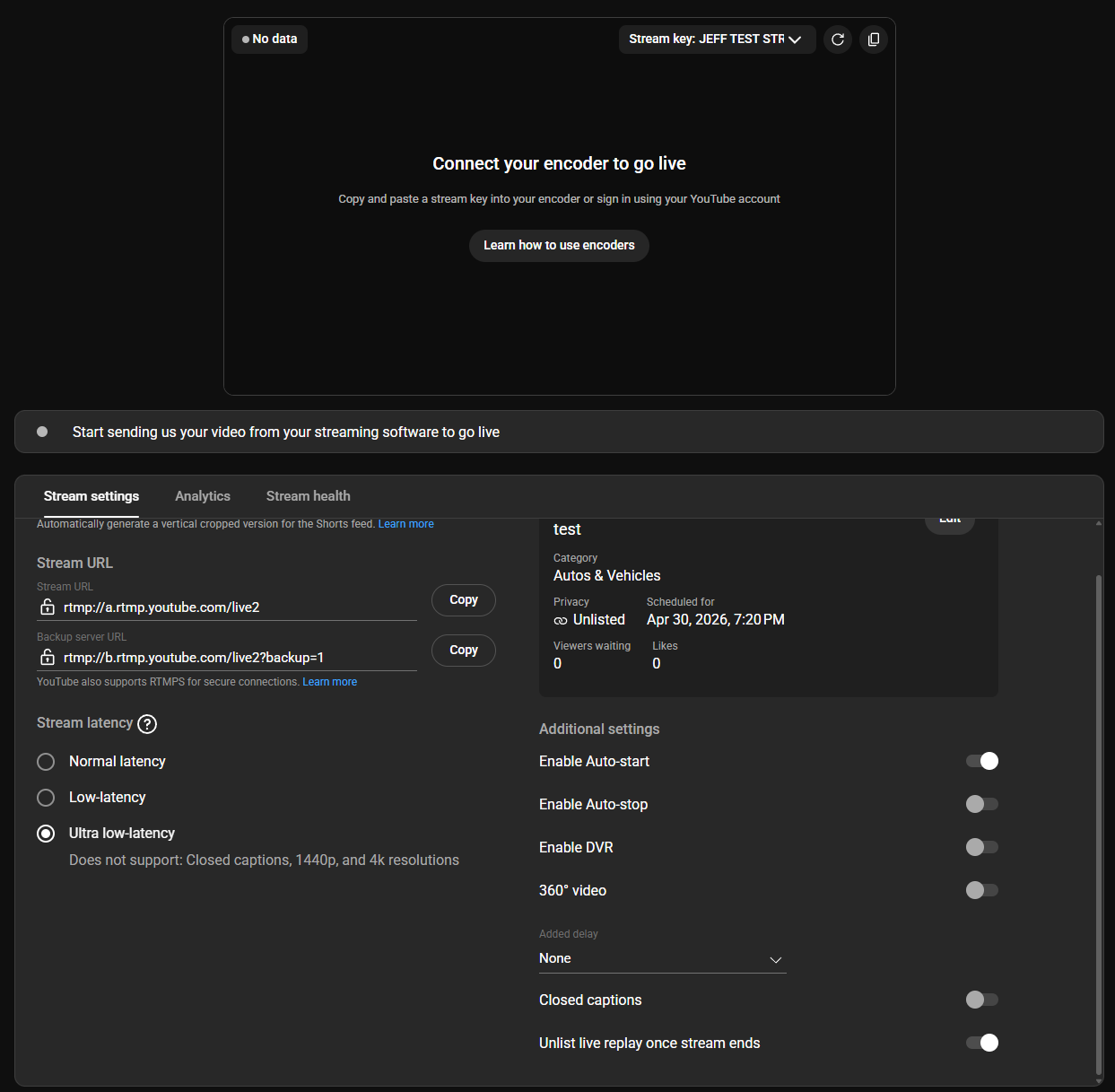
Auto-Start:
Enabled– the stream begins as soon as data is received.Auto-Stop:
Disabled– stream remains open even if the encoder disconnects.Unlist Replay:
Enabled– prevents unusable replays from cluttering your channel. Replays will not load because of their excessive length.DVR:
Disabled– DVR features will not be functional due to the excessive length of the live stream.Latency:
Ultra Low Latency– For the lowest possible latency on YouTube (~3-5s), we suggest using Ultra Low Latency. For higher stability you may adjust to Low or Normal to suit your needs.
📅 Setting Up a Scheduled Stream
A Scheduled stream is better suited for distinct events (e.g., practice sessions, races) that should be recorded, rewound, or replayed separately.
Use When:
You need DVR functionality (rewind during or after the event).
You want to save videos as distinct YouTube uploads.
You prefer tighter control over timing.
Configuration Tips:
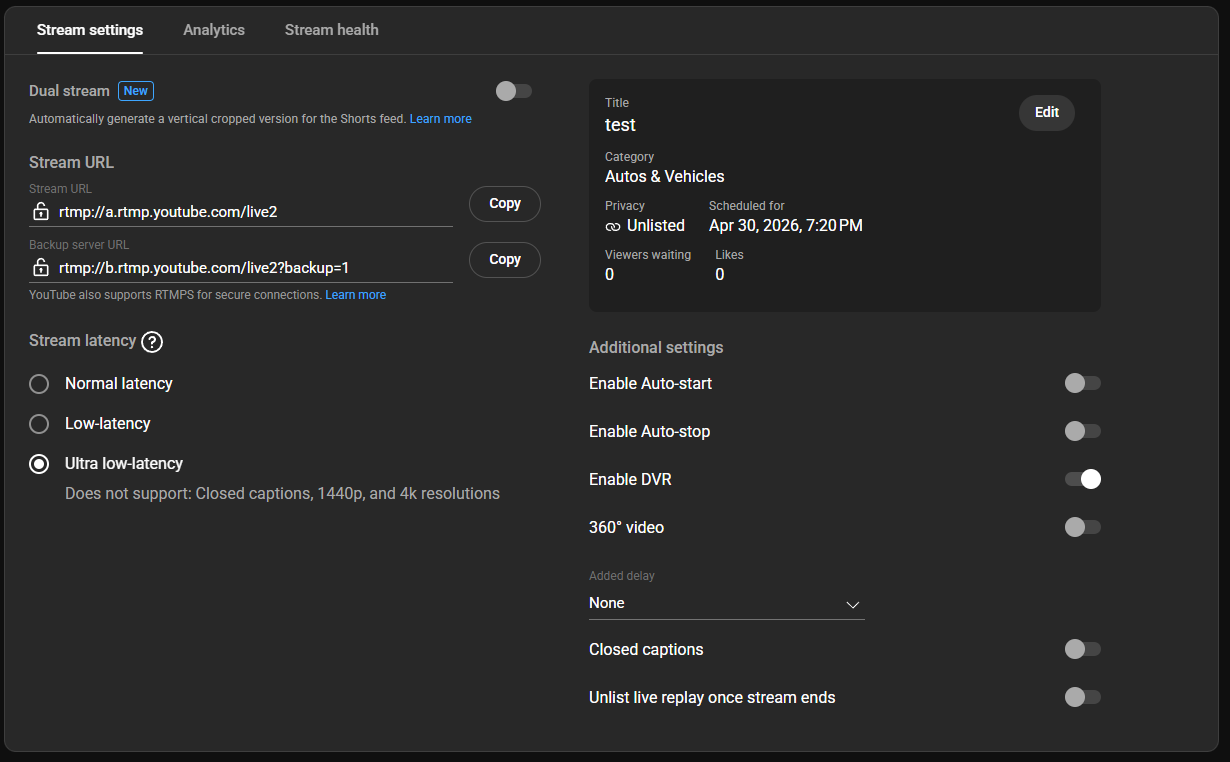
Auto-Start:
Disabled– stream only begins when manually activated.
To avoid scheduled streams being prematurely consumed, we strongly recommend turning off auto-start.Auto-Stop:
Optional– stream will end automatically after a few minutes of no incoming video. Long network drops may prematurely end the stream!DVR:
Enabled– allows viewers to rewind.Unlist Replay: Optional depending on privacy needs.
Latency:
Ultra Low Latency- For the lowest possible latency on YouTube (~3-5s), we suggest using Ultra Low Latency. For higher stability you may adjust to Low or Normal to suit your needs.
🧪 Stream Behavior Examples
Keepalive
GPX device sends intermittent video.
YouTube displays “Offline” during dropouts, but the link stays up.
GPX system may occasionally send a short branded clip to keep YouTube from fully terminating the stream.
Scheduled
GPX device sends video, but the public stream won’t begin until Go Live is clicked.
Stream ends once GPX device stops sending (if auto-stop enabled).
Video is saved and becomes available on the YouTube channel if replay is enabled.
▶️ Setting up your stream
Sign in to your YouTube account.
Click the Create icon at the top right of the page.
Select Go Live.
In the left menu, select “Manage” (calendar icon), then click on “Schedule Stream” in the top right corner.
Pro tip! Don't use “Stream” button, this provides less of the custom settings you will need to ensure your stream works well in a race car!
Follow the guide to create a new stream:
Enter a title and description
Select “Streaming Software” in the "How do you want to go live?" menu
Pro tip! We recommend setting the Audience to "It's not made for kids". This avoids issues with YouTube in cases of more... colorful language being overheard!
Click next, and select your preferences for the customization page
Click next, and choose your visibility options
Enter the date and time you want to go live (This is only to let your viewers know when the stream will start, but will not prevent your stream from starting earlier or later than the time entered!)
Click “Done”
When you new stream opens:
Make sure you're on the Stream settings tab.
Set “Enable Auto-Start” to the preferred option based on our Key Concepts table above
Set “Enable Auto-Stop” to OFF - we usually recommend this to avoid the stream being "consumed" during short interruptions that may happen with the stream (such as a device briefly going offline during a pit stop)
Click on “Copy”, next to the Stream Key to copy it to your clipboard.
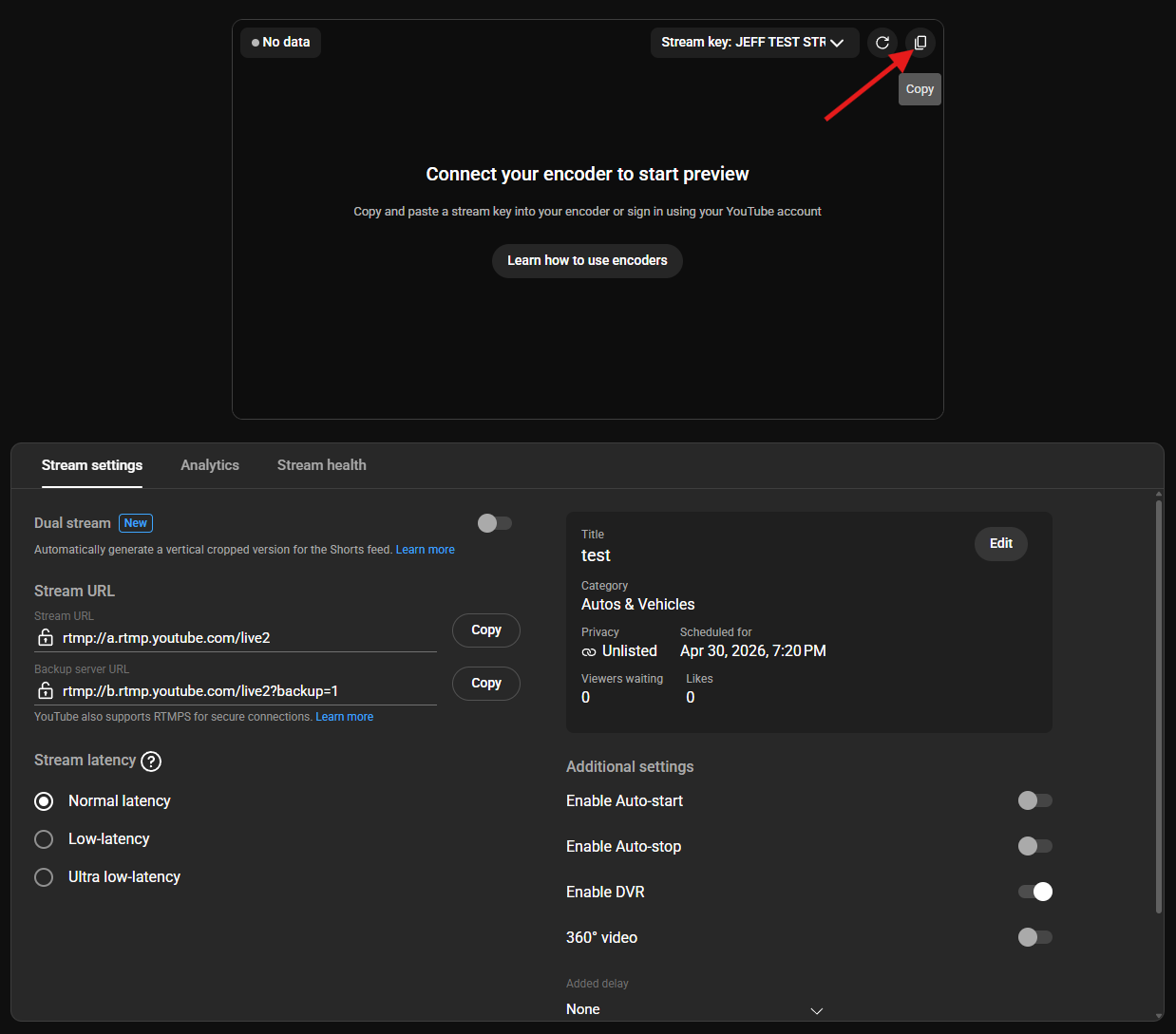
When you click copy, you will see a small confirmation message in the bottom left of your screen. Simply paste the stream key when you send it to us. It should look something like "5jeq-18tt-g6xy-6tct-4fxb"
🔁 Reusing a Scheduled Template
You can quickly create multiple upcoming events (e.g. Free Practice 1, Qualifying, Race) using the "Reuse Settings" option.
Steps:
Go to YouTube Live Control Room.
Click Create → Go Live.
Choose Scheduled Stream → “Reuse settings”.
Rename the title (e.g. “FP1”, “Qualifying”), adjust schedule time.
Set visibility (Private, Unlisted, Public) and enable live chat if desired.
Confirm stream key is Scheduled (not the Keepalive key to avoid duplicate and simultaneous use of the same stream key).
⚠️ Avoiding Common Pitfalls of Scheduled Streams
Issue | Solution |
|---|---|
❌ Stream started prematurely | Disable Auto-Start for Scheduled streams |
❌ Stream link expired too soon | Disable Auto-Start for Scheduled streams, disable Auto-Stop to manually stop the stream from your YouTube Live Control Room. Scheduled streams with auto-stop disabled will still end automatically after ~30 minutes of no incoming video. With auto-stop enabled, streams end after ~2-3 minutes. |
⚠️ Duplicate Stream Key Error | Only a concern if overlapping streams go live. Otherwise, safe to ignore when scheduling multiple, non-overlapping streams in advance. |
🧵 Stream cut off unexpectedly | Keep Auto-Stop disabled for longer stream buffer |
📝 Final Notes
You can schedule multiple sessions in advance using the same stream key – just make sure to manually start each one.
For race events, it's common to use Scheduled streams for sessions, and Keepalive for general weekend coverage.
The Keepalive stream should be deleted and recreated only if YouTube experiences errors (rare).